What is Kongping Boshi?
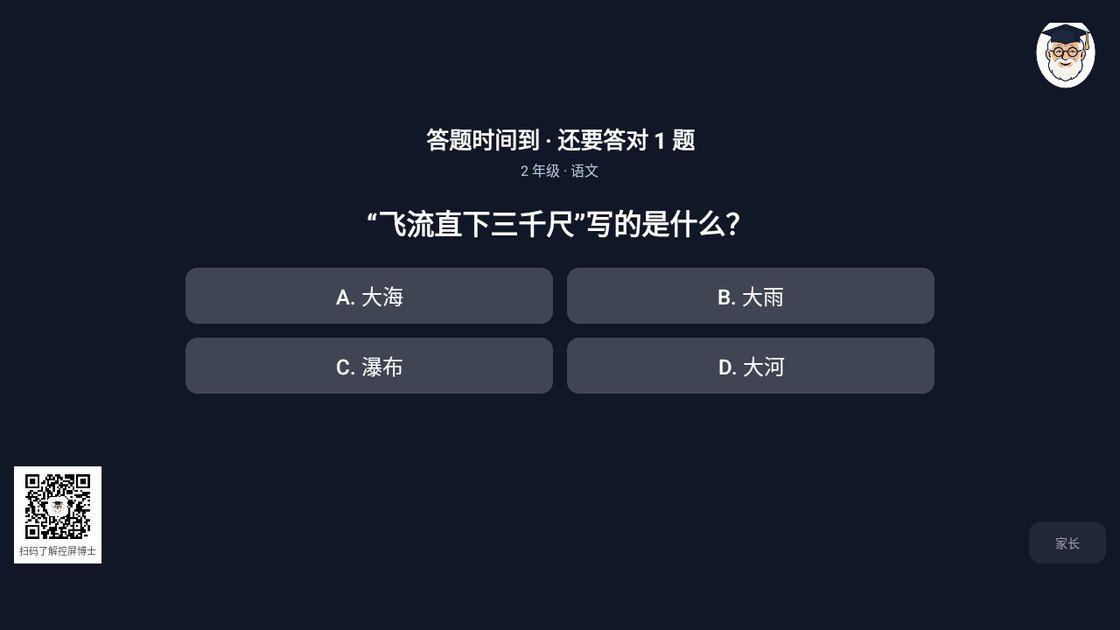
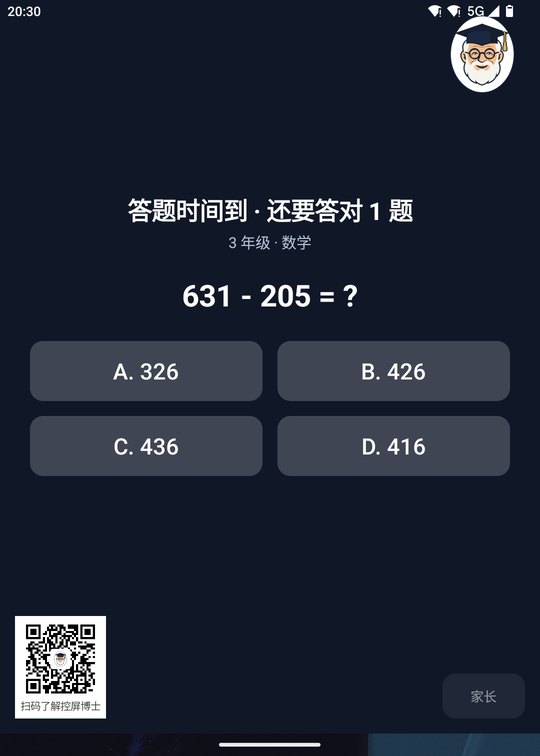
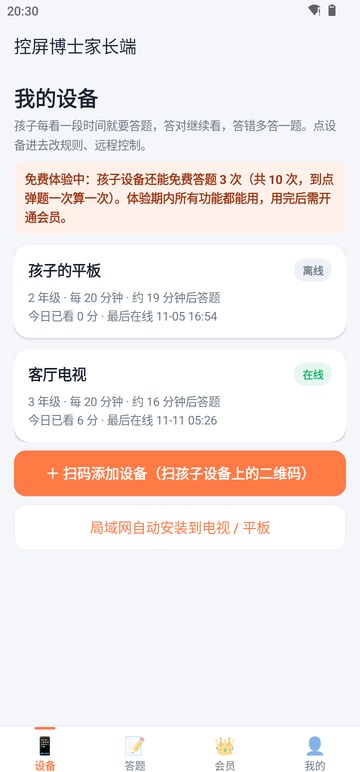
Kongping Boshi (控屏博士) is a children's screen-time app. Install it on your child's Android phone, tablet or TV. Once your child has watched for the time you set (15 minutes by default), a question for their grade pops up. Answer right and keep watching; answer wrong, see the explanation and do one more. From your own phone you set the grade, difficulty and subjects, lock the screen at any time, and see how they're doing. The app interface and question bank are in Chinese.
How much does it cost?
New families get 10 free quiz rounds (each pop-up counts as one), with every feature available during the trial. After that, buy a membership. Promotional prices: monthly pass ¥0.99 / 30 days (regular ¥9.9), annual pass ¥9.9 / 365 days (regular ¥99). One-off purchase, no auto-renewal. Paid with WeChat Pay and collected by YuShang Technology 於商科技.
Which grades and subjects are covered?
Kindergarten (junior, middle and senior classes), primary grades 1–6 and middle school grades 7–9. Subjects are Chinese, maths, English, science, history, general knowledge and nature; middle school adds physics, chemistry, biology, geography and morality & law. Maths questions are generated per grade and don't repeat.
How do I choose the difficulty?
There are four levels. Easy asks questions from one grade below, Normal from their own grade, Hard from one grade above, and Hell asks olympiad-style reasoning questions (no options, type the answer, 60-second limit, aimed so that only about 10% of children can solve them). Move up if it's too easy, down if it's a struggle.
My kindergartner can't read yet. Will it work?
Yes. Kindergarten questions are mostly pictures and listening. Each question and its options are read out automatically, the "🔊 Read" speaker button replays them at any time, and each option has its own small speaker. TVs without a Chinese voice engine are fine too: the audio is pre-recorded and plays when online.
How fast does "Lock" from my phone take effect?
The child's device follows within about 5 seconds (child app 1.4.9 or later; about 20 seconds on earlier versions). The same goes for Quiz now, Release, Pause 30 min and Reset timer.
The quiz screen is too bright at night. What can I do?
Change the background under "Quiz background" in the parent app: matcha green, apple green, grey-blue and cream paper suit daytime, and night navy suits watching TV with the lights off.
Can I limit daily viewing time and the hours it can be used?
Yes. "Daily limit" caps the total for the day: once it's used up the screen locks, resetting at midnight. "Allowed hours" sets a usable window (e.g. 18:00 to 20:30, or across midnight such as 20:00 to 07:00 next day), with the screen locked outside it. Entering the parent password on the child's device, or tapping "Release" on your phone, allows 60 more minutes. Time on the lock screen or home screen, or during phone calls, isn't counted.
Will questions answered wrong come up again?
Yes. Wrong answers go into a mistake book and are asked again 20 minutes later; they leave the book only once answered correctly. The book keeps up to 100 questions and carries over between days. The device card on your phone shows how many are left.
If two parents change a setting at the same time, which one wins?
Each setting is compared on its own, and the most recent change wins. Settings changed on the child's device (after entering the parent password) also sync back to the parent's phone.
Can my child uninstall the app?
With protection on, uninstalling, force-stopping, clearing data and turning off accessibility all need the parent password; in device-owner mode, uninstalling is blocked at system level. Most primary-school children won't get around it.
Can they escape with the Home button or the notification shade?
No. The quiz is a system-level overlay above the home screen and status bar; swiping up to home, edge-back and pulling down the notification shade all bounce straight back to the quiz.
Does it still work after a power cut or restart?
Yes, as long as "auto-start on boot" is enabled (how to enable it and what happens if you don't, in Chinese). Otherwise, if your child turns the device off and on, Kongping Boshi won't start and they can keep watching without quizzes. This is the most common way around it. Viewing time is saved every second, an unfinished question resumes after boot, and the guard restarts itself if it's killed.
If I skip some permissions, can my child get around it?
Yes. Without auto-start, restarting the device gets around it; without the background / battery whitelist, clearing recent apps stops the quizzes; without the overlay permission, the quiz can't appear at all. The install guide explains, permission by permission, what happens if it's off, where to turn it on for your phone, and how important it is (install guide, in Chinese).
What if my child can't answer? Will the device get stuck?
No. There's an anti-brick safeguard: if a question isn't answered within the set time, the device is released automatically, no password needed.
How do I install it on a TV? Granting permissions with a remote is painful.
Turn on network ADB debugging on the TV, and the parent's phone or a computer can install the app remotely and grant all permissions automatically. You don't need to open any permission page with the remote. See the install guide (Chinese).
I use an iPhone or a HarmonyOS NEXT phone. Can I be the parent?
Yes. There's a web parent app: open ipbs.yushangcc.com in Safari, the Huawei browser or any other browser, sign in to the same family, and you can manage remotely, see quiz results and buy a membership. You can also "Add to Home Screen" to use it like an app. To pair a child's device, scan the QR code on its screen with your phone camera. Only the one-tap local-network install of the child app needs the Android parent app; iPhone parents can install the child app manually from a USB drive or a browser download. Note: the child's device must still be an Android tablet / TV for now. A HarmonyOS NEXT version of the child app is in development, and we'll announce it here once it's on Huawei AppGallery.